Friday, May 15, 2026

An Esoteric Type of Memory "Leak"

A little while ago, my colleague Sebastian started complaining about OOMs caused by Evolution taking up tens of gigabytes of memory. We discussed using sysprof to debug it, but it was too busy a time for Sebastian to set aside a few hours to do that.

Funnily enough, the most efficient fix at the time was to buy more RAM, since rust-analyzer was also causing OOM issues.

A few weeks went by. Restarting Evolution had become a daily ritual for Sebastian. 

Then, on a whim, I decided investigating this might be a good test for an LLM.

I updated my Evolution git repo, built it, and started up Claude Code in the source root. This was the only prompt I supplied: 

Find memory leaks in Evolution, current sourcedir. Particularly leaks that could accumulate over several hours. A colleague has a leak that slowly accumulates memory usage to several GB over the course of a day, requiring a restart of Evolution. That is the main focus, but we can fix other leaks in the process.

I wish I was lying, but that was all Claude Code needed to find the problem: Evolution just needed to call malloc_trim(0) from time to time.

I refused to believe it at first. I was only convinced when we saw the memory drop after running gdb -p $(pidof evolution) -batch -ex "call malloc_trim(0)" -ex detach

This seems absurd! Doesn't glibc reclaim freed memory from time to time?

Yes, it does. It calls sbrk() to do that. However, sbrk() can only reclaim free memory at the top of the heap, since it simply moves the program break downward to do so. malloc_trim(0) calls sbrk() and then also calls madvise(..., MADV_DONTNEED) on the free pages, which allows the kernel to reclaim them.

So if you have 10GB of unused memory followed by 4 bytes allocated at the top of the heap, your RSS is >10GB, even if you're using a few hundred megs. Till you call malloc_trim(0).

Note that you can only get into this situation if you have hundreds of thousands of small allocs/deallocs happening repeatedly. If your alloc is >128KB, mmap() is used for the allocation, and none of this applies.

Coincidentally, GLib's use of GSlice for GObject allocations was masking this issue in the past, but GSlice has been a no-op for some time now (for good reasons). Ideally, Evolution should not be using GObject for such ephemeral objects.

Lesson learned: if you have memory usage issues and you suspect fragmentation, try malloc_trim(0) before you go thinking about fancy allocators.

Monday, June 23, 2025

A strange game. The only winning move is not to play.

That's a reference to the 1983 film “WarGames”. A film that has had incredible influence on not just the social milieu, but also cyber security and defence. It has a lot of lessons that need re-learning every couple of generations, and I think the time for that has come again.

Human beings are very interesting creatures. Tribalism and warfare are wired in our minds in such a visceral way, that we lose the ability to think more than one or two steps forward when we're trying to defend our tribe in anger.

Most people get that this is what makes warfare conducted with nuclear weapons particularly dangerous, but I think not enough words have been written about how this same tendency also makes warfare conducted with Social Media dangerous.

You cannot win a war on Social Media. You can only mire yourself in it more and more deeply, harming yourself, the people around you, and the potential of what you could've been doing instead of fighting that war. The more you throw yourself in it, the more catharsis you will feel, followed by more attacks, more retaliation, and more catharsis.

A Just War is addictive, and a Just War without loss of life is the most addictive of all.

The only winning move is not to play.

The Internet in general and Social Media in particular are very good at bringing close to you all kinds of strange and messed-up people. For a project like GNOME, it is almost unavoidable that the project and hence the people in it will encounter such people. Many of these people live for hate, and wish to see the GNOME project fail.

Engaging them and hence spending your energy on them is the easiest way to help them achieve their goals. You cannot bully them off the internet. Your angry-posting and epic blogs slamming them into the ground aren't going to make them stop. The best outcome is that they get bored and go annoy someone else.

The only winning move is not to play.

When dealing with abusive ex-partners or ex-family members, a critical piece of advice is given to victims: all they want is a reaction. Everything they're doing is in pursuit of control, and once you leave them, the only control they have left is over your emotional state.

When they throw a stone at you, don't lob it back at them. Catch it and drop it on the ground, as if it doesn't matter. In the beginning, they will intensify their attack, saying increasingly mean and cutting things in an attempt to evoke a response. You have to not care. Eventually they will get bored and leave you alone.

This is really REALLY hard to do, because the other person knows all your trigger points. They know you inside out. But it's the only way out.

The only winning move is not to play.

Wars that cannot be won, should not be fought. Simply because war has costs, and for the people working on GNOME, the cost is time and energy that they could've spent on creating the future that they want to see.

In my 20s and early 30s I made this same youthful mistake, and what got me out of it was my drive to always distil decisions through two questions: What is my core purpose? Is this helping me achieve my purpose?

This is such a powerful guiding and enabling force, that I would urge all readers to imbue it. It will change your life.

Wednesday, November 27, 2024

The Substance

I have many thoughts about this film, and I don't really have the time to put it all together into one coherent whole, but an incoherent whole is also what the film also gave us, so I don't mind mirroring it.

This film is three movies in a trench coat—one per act.

The First Act


The first act was about beauty standards. The entertainment industry. The youth-consuming machine. The brutality of every content-creation business. It makes you viscerally associate disgust and revulsion with the circumstances that The Protagonist finds herself in.

It's all true, it's all widely known, it's all been done before.

This act was also a trojan horse, because the next act shifts from social commentary to...

The Second Act


... commentary on the Self.

It's about a human, whose relationship with their many selves each with its own desires, is cause for a constant tug-of-war. They make this abundantly clear with a scene making clear that all shooting schedules will be accommodated around Sue's every-alternate-week availability. Any lack of balance is entirely Self-Inflicted.

It's about the Self and the Self alone.

It's about her.

It's about you.

The you who wants to be the best version of yourself, and the you that sabotages your body, your soul, your mind, and what you can be (or want to be).

If you struggle with alcohol, it's about the alcoholic in you, and the tearful regret the next morning.

If you have an eating disorder, it's about the gorger (or starver) in you, and the you that aches to do better.

If you are a revenge procrastinator, it's about the late nights, and the next day, when you curse yourself for not doing better.

Every day that you do not stay active and take care of your body, you take a day from yourself in old age.

What's been taken can't be given back.

Both those people are you. Tonight and tomorrow morning. In youth and in old age. You and she/he/they are the same. And yet, you sabotage yourself.


A little bit of temporary suffering today could save you a lot of permanent damage.


You could stop The Substance Abuse, but you can't. You choose to make the You of tomorrow suffer instead. Till you die...

... which is how this film could've ended, but they had room for another movie in there.

The Third Act


Avid cinema-goers know that the third act (more generally in media, the ending) is where a lot of stories fall apart. It's a natural consequence of the creation process.

Creation often begins with an evocative idea, and growing from there is natural and progressive. But a satisfying ending requires you to have two evocative ideas with a convincing progression that connects the two seamlessly.

It's very, very difficult.

Some of the best stories are those that have their genesis in an ending, and they grow backwards from there to a beginning. People are a lot more forgiving about beginnings. All's well that ends well.

This wasn't one of those stories.

The ending was The Thing, Planet Terror, Kill Bill, The Colour Out of Space. It was Camp. It was an entirely different genre of story.

It was, at least to me, pretty clearly about taking you on a roller-coaster ride that requires you to suspend disbelief so it can take you to an ending that happens to wrap back to the cold open with the Walk of Fame Star, which in retrospect was obviously construed entirely for the sake of the ending. It had little other purpose.

Personally, I enjoyed it, and I think I was meant to. It was an interesting way to side-step the problem of "how to have a satisfying ending". Like ending a three-course meal with a joyride for dessert.

It was a fun film, but I will never watch it again.

Wednesday, July 26, 2023

What is WebRTC? Why does it need ‘Signalling’?

If you’re new to WebRTC, you must’ve heard that it’s a way to do video calls in your browser without needing to install an app. It’s pretty great!

However, it uses a bunch of really arcane terminology because it builds upon older technologies such as RTP, RTCP, SDP, ICE, STUN, etc. To understand what WebRTC Signalling is, you must first understand these foundational technologies.

Readers who are well-versed in this subject might find some of the explanations annoyingly simplistic to read. They will also notice that I am omitting a lot of of detail, leading to potentially misleading statements.

I apologize in advance to these people. I am merely trying to avoid turning this post into a book. If you find a sub-heading too simplistic, please feel free to skip it. :-)

RTP

Real-time Transport Protocol is a standardized way of taking video or audio data (media) and chopping it up into “packets” (you can literally think of them as packets / parcels) that are sent over the internet using UDP. The purpose is to try and deliver them to the destination as quickly as possible.

UDP (user datagram protocol) is a packet-based alternative to TCP (transmission control protocol), which is connection-based. So when you send something to a destination (IP address + port number), it will be delivered if possible but you have no protocol-level mechanism for finding out if it was received, unlike, say, TCP ACKs.

You can think of this as chucking parcels over a wall towards someone whom you can’t see or hear. A bunch of them will probably be lost, and you have no straightforward way to know how many were actually received.

UDP is used instead of TCP for a number of reasons, but the most important ones are:

  1. TCP is designed for perfect delivery of all data, so networks will often try too hard to do that and use ridiculous amounts of buffering (sometimes 30 seconds or more!), which leads to latencies that are too large for two people to be able to talk over a call.

  2. UDP doesn’t have that problem, but the trade-off is that it gives no guarantees of delivery at all!

    You’d be right to wonder why nothing new has been created to be a mid-way point between these two extremes. The reason is that new transport protocols don’t get any uptake because existing systems on the Internet (operating systems, routers, switches, etc) don’t (want to) support them. This is called Protocol ossification, and it's a big problem for the Internet.

    Due to this, new protocols are just built on top of UDP and try to add mechanisms to detect packet loss and such. One such mechanism is…

RTCP

RTP Control Protocol refers to standardized messages (closely related to RTP) that are sent by a media sender to all receivers, and also messages that are sent back by the receiver to the sender (feedback). As you might imagine, this message-passing system has been extended to do a lot of things, but the most important are:

  1. Receivers use this to send feedback to the sender about how many packets were actually received, what the latency was, etc.
  2. Senders send information about the stream to receivers using this, for instance to synchronize audio and video streams (also known as lipsync), to tell receivers that the stream has ended (a BYE message), etc.

Similar to RTP, these messages are also sent over UDP. You might ask “what if these are lost too”? Good question!

RTCP packets are sent at regular intervals, so you’d know if you missed one, and network routers and switches will prioritize RTCP packets over other data, so you’re unlikely to lose too many in a row unless there was a complete loss of connectivity.

Peer

WebRTC is often called a “peer-to-peer” (P2P) protocol. You might’ve heard that phrase in a different context: P2P file transfer, such as Bittorrent.

The word “peer” contrasts with “server-client” architectures, in which “client” computers can only talk to (or via) “server” computers, not directly to each other.

We can contrast server-client architecture with peer-to-peer using a real-world example:

  • If you send a letter to your friend using a postal service, that’s a server-client architecture.
  • If you leave the letter in your friend’s mailbox yourself, that’s peer-to-peer.

But what if you don’t know what kind of messages the recipient can receive or understand? For that we have…

SDP

Stands for Session Description Protocol which is a standardized message format to tell the other side the following:

  • Whether you want to send and/or receive, audio and/or video
  • How many streams of audio and/or video you want to send / receive
  • What formats you can send or receive, for audio and/or video

This is called an “offer”. Then the other peer uses the same message format to reply with the same information, which is called an “answer”.

This constitutes media “negotiation”, also called “SDP exchange”. One side sends an “offer” SDP, the other side replies with an “answer” SDP, and now both sides know what to do.

As you might expect, there’s a bunch of other technical details here, and you can know all about them at this excellent page that explains every little detail. It even explains the format for ICE messages! Which is…

ICE

Interactive Connectivity Establishment is a standardized mechanism for peers to tell each other how to transmit and receive UDP packets. The simplest way to think of it is that it’s just a list of IP address and port pairs.

Once both sides have successfully sent each other (“exchanged”) ICE messages, both sides know how to send RTP and RTCP packets to each other.

Why do we need IP address + port pairs to know how to send and receive packets? For that you need to understand…

How The Internet Works

If you’re connected to the internet, you always have an IP address. That’s usually something like 192.168.1.150 – a private address that is specific to your local (home) network and has no meaning outside of that. Having someone’s private IP address is basically like having just their house number but no other parts of their address, like the street or the city. Useful if you're living in the same building, but not otherwise.

Most personal devices (computer or phone or whatever) with access to the Internet don’t actually have a public IP address. Picking up the analogy from earlier, a public IP address is the internet equivalent of a full address with a house number, street address, pin code, country.

When you want to connect to (visit) a website, your device actually talks to an ISP (internet service provider) router, which will then talk to the web server on your behalf and ask it for the data (website in this case) that you requested. This process of packet-hopping is called “routing” of network packets.

This ISP router with a public address is called a NAT (Network Address Translator). Like the name suggests, its job is to translate the addresses embedded in packets sent to it from public to private and vice-versa.

Let’s say you want to send a UDP packet to www.google.com. Your browser will resolve that domain to an IP address, say 142.250.205.228. Next, it needs a port to send that packet to, and both sides have to pre-agree on that port. Let’s pick 16789 for now.

Your device will then allocate a port on your device from which to send this packet, let’s say 11111. So the packet header looks a bit like this:

From To
192.168.1.150:11111 142.250.205.228:16789

Your ISP’s NAT will intercept this packet, and it will replace your private address and port in the From field in the packet header to its own public address, say 169.13.42.111, and it will allocate a new sender port, say 22222:

From To
169.13.42.111:22222 142.250.205.228:16789

Due to this, the web server never sees your private address, and all it can see is the public address of the NAT.

When the server wants to reply, it can send data back to the From address, and it can use the same port that it received the packet on:

From To
142.250.205.228:16789 169.13.42.111:22222

The NAT remembers that this port 22222 was recently used for your From address, and it will do the reverse of what it did before:

From To
142.250.205.228:16789 192.168.1.150:11111

And that’s how packets are send and received by your phone, computer, tablet, whatever when talking to a server.

Since at least one side needs to have a public IP address for this to work, how can your phone send messages to your friend’s phone? Both only have private addresses.

Solution 1: Just Use A Server As A Relay

The simplest solution is to have a server in the middle that relays your messages. This is how all text messaging apps such as iMessage, WhatsApp, Instagram, Telegram, etc work.

You will need to buy a server with a public address, but that’s relatively cheap if you want to send small messages.

For sending RTP (video and audio) this is accomplished with a TURN (Traversal Using Relays around NAT) server.

Bandwidth can get expensive very quickly, so you don’t want to always use a TURN server. But this is a fool-proof method to transmit data, so it’s used a backup.

Solution 2: STUN The NAT Into Doing What You Want

STUN stands for “Simple Traversal of UDP through NATs”, and it works due to a fun trick we can do with most NATs.

Previously we saw how the NAT will remember the mapping between a “port on its public address” and “your device’s private address and port”. With many NATs, this actually works for any packet sent on that public port by anyone.

This means if a public server can be used to create such mappings on the NATs of both peers, then the two can send messages to each other from NAT-to-NAT without a relay server!

Let’s dig into this, and let’s substitute hard-to-follow IP addresses with simple names: AlicePhone, AliceNAT, BobPhone, BobNAT, and finally STUNServer:19302.

First, AlicePhone follows this sequence:

  1. AlicePhone sends a STUN packet intended for STUNServer:19302 using UDP

    From To
    AlicePhone:11111 STUNServer:19302
  2. AliceNAT will intercept this and convert it to:

    From To
    AliceNAT:22222   STUNServer:19302
  3. When STUNServer receives this packet, it will know that if someone wants to send a packet to AlicePhone:11111, they could use AliceNAT:22222 as the To address. This is an example of an ICE candidate.

  4. STUNServer will then send a packet back to AlicePhone with this information.

Next, BobPhone does the same sequence and discovers that if someone wants to send a packet to BobPhone:33333 they can use BobNAT:44444 as the To address. This is BobPhone’s ICE candidate.

Now, AlicePhone and BobPhone must exchange these ICE candidates.

How do they do this? They have no idea how to talk to each other yet.

The answer is… they Just Use A Server As A Relay! The server used for this purpose is called a Signalling Server.

Note that these called “candidates” because this mechanism won’t work if one of the two NATs changes the public port also based on the public To address, not just the private From address. This is called a Symmetric NAT, and in these (and other) cases, you have to fallback to TURN.

Signalling Server

Signalling is a technical term that simply means: “a way to pass small messages between peers”. In this case, it’s a way for peers to exchange SDP and ICE candidates.

Once these small messages have been exchanged, the peers know how to send data to each other over the internet without needing a relay.

Now open your mind: you could use literally any out of band-mechanism for this. You can use Amazon Kinesis Video Signalling Channels. You can use a custom websocket server or a ProtoBuf server.

Heck, Alice and Bob can copy/paste these messages into iMessage on both ends. In theory, you can even use carrier pigeons — it’ll just take a very long time to exchange messages 😉

That’s it, this is what Signalling means in a WebRTC context, and why it’s necessary for a successful connection!

What a Signalling Server gives you on top of this is state management: checking whether a peer is allowed to send messages to another peer, whether a peer is allowed to join a call, can be invited to a call, which peers are in a call right now, etc.

Based on your use-case, this part can be really easy to implement or really difficult and heavy in corner-cases. Most people can get away with a really simple protocol, just by adding authorization to this multi-party protocol I wrote for the GStreamer WebRTC multiparty send-receive examples. More complex setups require a more bespoke solution, where all peers aren’t equal.

Tuesday, September 29, 2020

Building GStreamer on Windows the Correct Way

For the past 4 years, Tim and I have spent thousands of hours on better Windows support for GStreamer. Starting in May 2016 when I first wrote about this and then with the first draft of the work before it was revised, updated, and upstreamed.

Since then, we've worked tirelessly to improve Windows support in GStreamer  with patches to many projects such as the Meson build system, GStreamer's Cerbero meta-build system, and writing build files for several non-GStreamer projects such as x264, openh264, ffmpeg, zlib, bzip2, libffi, glib, fontconfig, freetype, fribidi, harfbuzz, cairo, pango, gtk, libsrtp, opus, and many more that I've forgotten.

More recently, Seungha has also been working on new GStreamer elements for Windows such as d3d11, mediafoundation, wasapi2, etc. Sometimes we're able to find someone to sponsor all this work, but most of the time it's on our own dime.

Most of this has been happening in the background; noticed only by people who follow GStreamer development. I think more people should know about the work that's been happening upstream, and the official and supported ways to build GStreamer on Windows. Searching for this on Google can be a very confusing experience with the top results being outdated links or just plain clickbait.

So here's an overview of your options when you want to use GStreamer on Windows:

Installing GStreamer on Windows

 
GStreamer has released MinGW binary installers for Windows since the early 1.0 days using the Cerbero meta-build system which was created by Andoni for the non-upstream "GStreamer SDK" project, which was based on GStreamer 0.10.
 
Today it supports building GStreamer with both MinGW and Visual Studio, and even supports outputting UWP packages. So you can actually go and download all of those from the download page:


This is the easiest way to get started with GStreamer on Windows.
 

Building GStreamer yourself for Deployment

 
If you need to build GStreamer with a custom configuration for deployment, the easiest option is to use Cerbero, which is a meta-build system. It will download all the dependencies for you (including most of the build-tools), build them with Autotools, CMake, or Meson (as appropriate), and output a neat little MSI installer.
 
The README contains all the information you need, including screenshots for how to set things up:


As of a few days ago, after months of work the native Cerbero Windows builds have also been integrated into our Continuous Integration pipeline that runs on every merge request, which further improves the quality of our Windows support. We already had native Windows CI using gst-build, but this increases our coverage.

Contributing to GStreamer on Windows

 
If you want to contribute to GStreamer from Windows, the best option is to clone the gstreamer monorepo (derived from gst-build which was created by Thibault), which is basically a meson 'wrapper' project that has all the gstreamer repositories aggregated as subprojects. Once again, the README file is pretty easy to follow and has screenshots for how to set things up:


This is also the method used by all GStreamer developers to hack on gstreamer on all platforms, so it should work pretty well out of the box, and it's tested on the CI. If it doesn't work, come poke us on #gstreamer on OFTC IRC (or the same channel via Matrix) or on the gstreamer mailing list.
 

It's All Upstream.

 
You don't need any special steps, and you don't need to read complicated blog posts to build GStreamer on Windows. Everything is upstream.

This post previously contained examples of such articles and posts that are spreading misinformation, but I have removed those paragraphs after discussion with the people who were responsible for them, and to keep this post simple. All I can hope is that it doesn't happen again.

Monday, August 31, 2020

GStreamer 1.18 supports the Universal Windows Platform

tl;dr: The GStreamer 1.18 release ships with UWP support out of the box, with official GStreamer binary releases for it. Try out the 1.17.90 pre-release 1.18.0 release and let us know how it goes! There's also an example gstreamer app for UWP that showcases OpenGL support (via ANGLE), audio/video capture, hardware codecs, and WebRTC.

Short History Lesson

 
Last year at the GStreamer Conference in Lyon, I gave a talk (slides) about how “Firefox Reality” for the Microsoft HoloLens 2 mixed-reality headset is actually Servo, and it uses GStreamer for all media handling: WebAudio, HTML5 Video, and WebRTC.

I also spoke about the work we at Centricular did to port GStreamer to the HoloLens 2. The HoloLens 2 uses the new development target for Windows Store apps: the Universal Windows Platform. The majority of win32 APIs have been deprecated, and apps have to use the new Windows Runtime, which is a language-agnostic API written from the ground up.

So the majority of work went into making sure that Win32 code didn't use deprecated APIs (we used a bunch of them!), and making sure that we could build using the UWP toolchain. Most of that involved two components:
  • GLib, a cross-platform low-level library / abstraction layer used by GNOME (almost all our win32 code is in here)
  • Cerbero, the build aggregator used by GStreamer to build binaries for all platforms supported: Android, iOS, Linux, macOS, Windows (MSVC, MinGW, UWP)
The target was to port the core of GStreamer, and those plugins with external dependencies that were needed to do playback in <audio> and <video> tags. This meant that the only external plugin dependency we needed was FFmpeg, for the gst-libav plugin. All this went well, and Firefox Reality successfully shipped with that work.

Upstreaming and WebRTC

 
Building upon that work, for the past few months we've been working on adding support for the WebRTC plugin, and also upstreaming as much of the work as possible. This involved a bunch of pieces:
  1. Use only OpenSSL and not GnuTLS in Cerbero because OpenSSL supports targeting UWP. This also had the advantage of moving us from two SSL stacks to one.
  2. Port a bunch of external optional dependencies to Meson so that they could be built with Meson, which is the easiest way for a cross-platform project to support UWP. If your Meson project builds on Windows, it will build on UWP with minimal or no build changes.
  3. Rebase the GLib patches that I didn't find the time to upstream last year on top of 2.62, split into smaller pieces that will be easier to upstream, update for new Windows SDK changes, remove some of the hacks, and so on.
  4. Rework and rewrite the Cerbero patches I wrote last year that were in no shape to be upstreamed.
  5. Ensure that our OpenGL support continues to work using Servo's ANGLE UWP port
  6. Write a new plugin for audio capture called wasapi2, great work by Seungha Yang.
  7. Write a new plugin for video capture called mfvideosrc as part of the media foundation plugin which is new in GStreamer 1.18, also by Seungha.
  8. Write a new example UWP app to test all this work, also done by Seungha! 😄
  9. Run the app through the Windows App Certification Kit
And several miscellaneous tasks and bugfixes that we've lost count of.

Our highest priority this time around was making sure that everything can be upstreamed to GStreamer, and it was quite a success! Everything needed for WebRTC support on UWP has been merged, and you can use GStreamer in your UWP app by downloading the official GStreamer binaries starting with the 1.18 release.

On top of everything in the above list, thanks to Seungha, GStreamer on UWP now also supports:

Try it out!

 
The example gstreamer app I mentioned above showcases all this. Go check it out, and don't forget to read the README file!
 

Next Steps

 
The most important next step is to upstream as many of the GLib patches we worked on as possible, and then spend time porting a bunch of GLib APIs that we currently stub out when building for UWP.

Other than that, enabling gst-libav is also an interesting task since it will allow apps to use FFmpeg software codecs in their gstreamer UWP app. People should use the hardware accelerated d3d11 decoders and mediafoundation encoders for optimal power consumption and performance, but sometimes it's not possible because codec support is very device-dependent. 

Parting Thoughts

 
I'd like to thank Mozilla for sponsoring the bulk of this work. We at Centricular greatly value partners that understand the importance of working with upstream projects, and it has been excellent working with the Servo team members, particularly Josh Matthews, Alan Jeffrey, and Manish Goregaokar.

In the second week of August, Mozilla restructured and the Servo team was one of the teams that was dissolved. I wish them all the best in their future endeavors, and I can't wait to see what they work on next. They're all brilliant people.

Thanks to the forward-looking and community-focused approach of the Servo team, I am confident that the project will figure things out to forge its own way forward, and for the same reason, I expect that GStreamer's UWP support will continue to grow.

Sunday, April 21, 2019

GStreamer's Meson and Visual Studio Journey


Almost 3 years ago, I wrote about how we at Centricular had been working on an experimental port of GStreamer from Autotools to the Meson build system for faster builds on all platforms, and to allow building with Visual Studio on Windows.

At the time, the response was mixed, and for good reason—Meson was a very new build system, and it needed to work well on all the targets that GStreamer supports, which was all major operating systems. Meson did aim to support all of those, but a lot of work was required to bring platform support up to speed with the requirements of a non-trivial project like GStreamer.

The Status: Today!

After years of work across several components (Meson, Ninja, Cerbero, etc), GStreamer is being built with Meson on all platforms! Autotools is scheduled to be removed in the next release cycle (1.18). Edit: as of October 2019, Autotools has been removed.

The first stable release with this work was 1.16, which was released yesterday. It has already led to a number of new capabilities:
  • GStreamer can be built with Visual Studio on Windows inside Cerbero, which means we now ship official binaries for GStreamer built with the  MSVC toolchain.
  • From-scratch Cerbero builds are much faster on all platforms, which has aided the implementation of CI-gated merge requests on GitLab.
  • The developer workflow has been streamlined and is the same on all platforms (Linux, Windows, macOS) using the gst-build meta-project. The meta-project can also be used for cross-compilation (Android, iOS, Windows, Linux).
  • The Windows developer workflow no longer requires installing several packages by hand or setting up an MSYS environment. All you need is Git, Python 3, Visual Studio, and 15 min for the initial build.
  • Profiling on Windows is now possible, and I've personally used it to profile and fix numerous Windows-specific performance issues.
  • Visual Studio projects that use GStreamer now have debug symbols since we're no longer mixing MinGW and MSVC binaries. This also enables usable crash reports and symbol servers.
  • We can ship plugins that can only be built with MSVC on Windows, such as the Intel MSDK hardware codec plugin, Directshow plugins, and also easily enable new Windows 10 features in existing plugins such as WASAPI.
  • iOS bitcode builds are more correct, since Meson is smart enough to know how to disable incompatible compiler options on specific build targets.
  • The iOS framework now also ships shared libraries in addition to the static libraries.
Overall, it's been a huge success and we're really happy with how things have turned out!

You can download the prebuilt MSVC binaries, reproduce them yourself, or quickly bootstrap a GStreamer development environment. The choice is yours!

Further Musings

While working on this over the years, what's really stood out to me was how this sort of gargantuan task was made possible through the power of community-driven FOSS and community-focused consultancy.

Our build system migration quest has been long with valleys full of yaks with thick coats of fur, and it would have been prohibitively expensive for a single entity to sponsor it all. Thanks to the inherently collaborative nature of community FOSS projects, people from various backgrounds and across companies could come together and make this possible.

There are many other examples of this, but seeing the improbable happen from the inside is something special.

Special shout-outs to ZEISS, Barco, Pexip, and Cablecast.tv for sponsoring various parts of this work!

Their contributions also made it easier for us to spend thousands more hours of non-sponsored time to fill in the gaps so that all the sponsored work done could be upstreamed in a form that's useful for everyone who uses GStreamer. This sort of thing is, in my opinion, an essential characteristic of being a community-focused consultancy, and we make sure that it always has high priority.

Tuesday, April 10, 2018

A simple method of measuring audio latency

In my previous blog post, I talked about how I improved the latency of GStreamer's default audio capture and render elements on Windows.

An important part of any such work is a way to accurately measure the latencies in your audio path.

Ideally, one would use a mechanism that can track your buffers and give you a detailed breakdown of how much latency each component of your system adds. For instance, with an audio pipeline like this:

audio-capture → filter1 → filter2 → filter3 → audio-output

If you use GStreamer, you can use the latency tracer to measure how much latency filter1 adds, filter2 adds, and so on.

However, sometimes you need to measure latencies added by components outside of your control, for instance the audio APIs provided by the operating system, the audio drivers, or even the hardware itself. In that case it's really difficult, bordering on impossible, to do an automated breakdown.

But we do need some way of measuring those latencies, and I needed that for the aforementioned work. Maybe we can get an aggregated (total) number?

There's a simple way to do that if we can create a loopback connection in the audio setup. What's a loopback you ask?

Ouroboros snake biting its tail

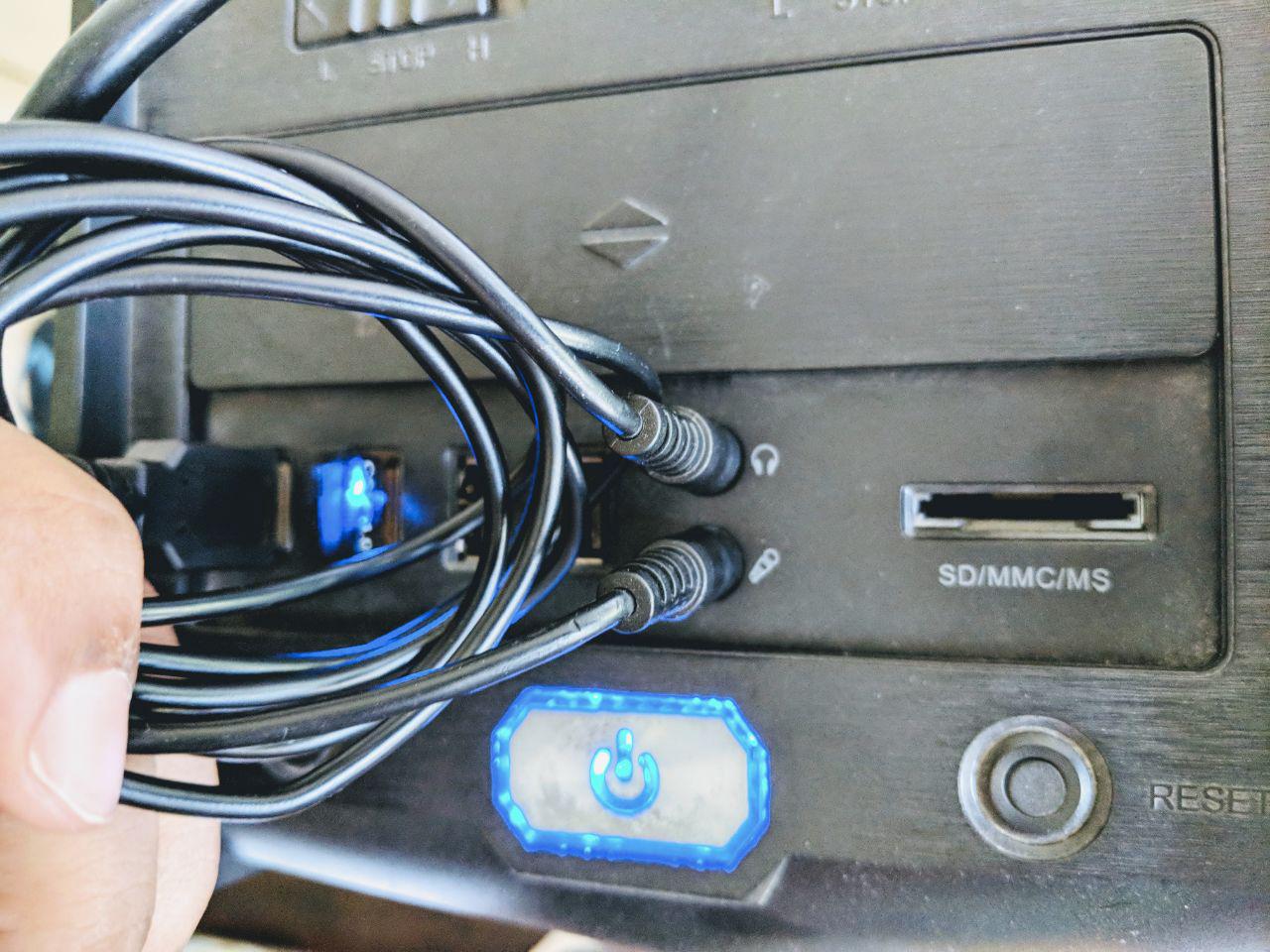
Essentially, if we can redirect the audio output back to the audio input, that's called a loopback. The simplest way to do this is to connect the speaker-out/line-out to the microphone-in/line-in with a two-sided 3.5mm jack.

photo of male-to-male 3.5mm jack connecting speaker-out to mic-in

Now, when we send an audio wave down to the audio output, it'll show up on the audio input.

Hmm, what if we store the current time when we send the wave out, and compare it with the current time when we get it back? Well, that's the total end-to-end latency!

If we send out a wave periodically, we can measure the latency continuously, even as things are switched around or the pipeline is dynamically reconfigured.

Some of you may notice that this is somewhat similar to how the `ping` command measures latencies across the Internet.

screenshot of ping to 192.168.1.1


Just like a network connection, the loopback connection can be lossy or noisy, f.ex. if you use loudspeakers and a microphone instead of a wire, or if you have (ugh) noise in your line. But unlike network packets, we lose all context once the waves leave our pipeline and we have no way of uniquely identifying each wave.

So the simplest reliable implementation is to have only one wave traveling down the pipeline at a time. If we send a wave out, say, once a second, we can wait about one second for it to show up, and otherwise presume that it was lost.

That's exactly how the audiolatency GStreamer plugin that I wrote works! Here you can see its output while measuring the combined latency of the WASAPI source and sink elements:


The first measurement will always be wrong because of various implementation details in the audio stack, but the next measurements should all be correct.

This mechanism does place an upper bound on the latency that we can measure, and on how often we can measure it, but it should be possible to take more frequent measurements by sending a new wave as soon as the previous one was received (with a 1 second timeout). So this is an enhancement that can be done if people need this feature.

Hope you find the element useful; go forth and measure!

Thursday, March 22, 2018

Low-latency audio on Windows with GStreamer

Digital audio is so ubiquitous that we rarely stop to think or wonder how the gears turn underneath our all-pervasive apps for entertainment. Today we'll look at one specific piece of the machinery: latency.

Let's say you're making a video of someone's birthday party with an app on your phone. Once the recording starts, you don't care when the app starts writing it to diskas long as everything is there in the end.

However, if you're having a Skype call with your friend, it matters a whole lot how long it takes for the video to reach the other end and vice versa. It's impossible to have a conversation if the lag (latency) is too high.

The difference is, do you need real-time feedback or not?

Other examples, in order of increasingly stricter latency requirements are: live video streaming, security cameras, augmented reality games such as Pokémon Go, multiplayer video games in general, audio effects apps for live music recording, and many many more.

“But Nirbheek”, you might ask, “why doesn't everyone always ‘immediately’ send/store/show whatever is recorded? Why do people have to worry about latency?” and that's a great question!

To understand that, checkout my previous blog post, Latency in Digital Audio. It's also a good primer on analog vs digital audio!

Low latency on consumer operating systems


Each operating system has its own set of application APIs for audio, and each has a lower bind on the achievable latency:


GStreamer already has plugins for almost all of these¹ (plus others that aren't listed here), and on Windows, GStreamer has been using the DirectSound API by default for audio capture and output since the very beginning.

However, the DirectSound API was deprecated in Windows XP, and with Vista, it was removed and replaced with an emulation layer on top of the newly-released WASAPI. As a result, the plugin can't be configured to have less than 200ms of latency, which makes it unsuitable for all the low-latency use-cases mentioned above. The DirectSound API is quite crufty and unnecessarily complex anyway.

GStreamer is rarely used in video games, but it is widely used for live streaming, audio/video calls, and other real-time applications. Worse, the WASAPI GStreamer plugins were effectively untouched and unused since the initial implementation in 2008 and were completely broken².

This left no way to achieve low-latency audio capture or playback on Windows using GStreamer.

The situation became particularly dire when GStreamer added a new implementation of the WebRTC spec in this release cycle. People that try it out on Windows were going to see much higher latencies than they should.

Luckily, I rewrote most of the WASAPI plugin code in January and February, and it should now work well on all versions of Windows from Vista to 10! You can get binary installers for GStreamer or build it from source.

Shared and Exclusive WASAPI


WASAPI allows applications to open sound devices in two modes: shared and exclusive. As the name suggests, shared mode allows multiple applications to output to (or capture from) an audio device at the same time, whereas exclusive mode does not.

Almost all applications should open audio devices in shared mode. It would be quite disastrous if your YouTube videos played without sound because Spotify decided to open your speakers in exclusive mode.

In shared mode, the audio engine has to resample and mix audio streams from all the applications that want to output to that device. This increases latency because it must maintain its own audio ringbuffer for doing all this, from which audio buffers will be periodically written out to the audio device.

In theory, hardware mixing could be used if the sound card supports it, but very few sound cards implement that now since it's so cheap to do in software. On Windows, only high-end audio interfaces used for professional audio implement this.

Another option is to allocate your audio engine buffers directly in the sound card's memory with DMA, but that complicates the implementation and relies on good drivers from hardware manufacturers. Microsoft has tried similar approaches in the past with DirectSound and been burned by it, so it's not a route they took with WASAPI³.

On the other hand, some applications know they will be the only ones using a device, and for them all this machinery is a hindrance. This is why exclusive mode exists. In this mode, if the audio driver is implemented correctly, the application's buffers will be directly written out to the sound card, which will yield the lowest possible latency.

Audio latency with WASAPI


So what kind of latencies can we get with WASAPI?

That depends on the device period that is being used. The term device period is a fancy way of saying buffer size; specifically the buffer size that is used in each call to your application that fetches audio data.

This is the same period with which audio data will be written out to the actual device, so it is the major contributor of latency in the entire machinery.

If you're using the AudioClient interface in WASAPI to initialize your streams, the default period is 10ms. This means the theoretical minimum latency you can get in shared mode would be 10ms (audio engine) + 10ms (driver) = 20ms. In practice, it'll be somewhat higher due to various inefficiencies in the subsystem.

When using exclusive mode, there's no engine latency, so the same number goes down to ~10ms.

These numbers are decent for most use-cases, but like I explained in my previous blog post, this is totally insufficient for pro-audio use-cases such as applying live effects to music recordings. You really need latencies that are lower than 10ms there.

Ultra-low latency with WASAPI


Starting with Windows 10, WASAPI removed most of its aforementioned inefficiencies, and introduced a new interface: AudioClient3. If you initialize your streams with this interface, and if your audio driver is implemented correctly, you can configure a device period of just 2.67ms at 48KHz.

The best part is that this is the period not just in exclusive mode but also in shared mode, which brings WASAPI almost at-par with JACK and CoreAudio

So that was the good news. Did I mention there's bad news too? Well, now you know.

The first bit is that these numbers are only achievable if you use Microsoft's implementation of the Intel HD Audio standard for consumer drivers. This is fine; you follow some badly-documented steps and it turns out fine.

Then you realize that if you want to use something more high-end than an Intel HD Audio sound card, unless you use one of the rare pro-audio interfaces that have drivers that use the new WaveRT driver model instead of the old WaveCyclic model, you still see 10ms device periods.

It seems the pro-audio industry made the decision to stick with ASIO since it already provides <5ms latency. They don't care that the API is proprietary, and that most applications can't actually use it because of that. All the apps that are used in the pro-audio world already work with it.

The strange part is that all this information is nowhere on the Internet and seems to lie solely in the minds of the Windows audio driver cabals across the US and Europe. It's surprising and frustrating for someone used to working in the open to see such counterproductive information asymmetry, and I'm not the only one.

This is where I plug open-source and talk about how Linux has had ultra-low latencies for years since all the audio drivers are open-source, follow the same ALSA driver model, and are constantly improved. JACK is probably the most well-known low-latency audio engine in existence, and was born on Linux. People are even using Pulseaudio these days to work with <5ms latencies.

But this blog post is about Windows and WASAPI, so let's get back on track.

To be fair, Microsoft is not to blame here. Decades ago they made the decision of not working more closely with the companies that write drivers for their standard hardware components, and they're still paying the price for it. Blue screens of death were the most user-visible consequences, but the current audio situation is an indication that losing control of your platform has more dire consequences.

There is one more bit of bad news. In my testing, I wasn't able to get glitch-free capture of audio in the source element using the AudioClient3 interface at the minimum configurable latency in shared mode, even with critical thread priorities unless there was nothing else running on the machine.

As a result, this feature is disabled by default on the source element. This is unfortunate, but not a great loss since the same device period is achievable in exclusive mode without glitches.

Measuring WASAPI latencies


Now that we're back from our detour, the executive summary is that the GStreamer WASAPI source and sink elements now use the latest recommended WASAPI interfaces. You should test them out and see how well they work for you!

By default, a device is opened in shared mode with a conservative latency setting. To force the stream into the lowest latency possible, set low-latency=true. If you're on Windows 10 and want to force-enable/disable the use of the AudioClient3 interface, toggle the use-audioclient3 property.

To open a device in exclusive mode, set exclusive=true. This will ignore the low-latency and use-audioclient3 properties since they only apply to shared mode streams. When a device is opened in exclusive mode, the stream will always be configured for the lowest possible latency by WASAPI.

To measure the actual latency in each configuration, you can use the new audiolatency plugin that I wrote to get hard numbers for the total end-to-end latency including the latency added by the GStreamer audio ringbuffers in the source and sink elements, the WASAPI audio engine (capture and render), the audio driver, and so on.

I look forward to hearing what your numbers are on Windows 7, 8.1, and 10 in all these configurations! ;)


1. The only ones missing are AAudio because it's very new and ASIO which is a proprietary API with licensing requirements.

2. It's no secret that although lots of people use GStreamer on Windows, the majority of GStreamer developers work on Linux and macOS. As a result the Windows plugins haven't always gotten a lot of love. It doesn't help that building GStreamer on Windows can be a daunting task . This is actually one of the major reasons why we're moving to Meson, but I've already written about that elsewhere!

3. My knowledge about the history of the decisions behind the Windows Audio API is spotty, so corrections and expansions on this are most welcome!

4. The ALSA drivers in the Linux kernel should not be confused with the ALSA userspace library.

Wednesday, March 14, 2018

Latency in Digital Audio

We've come a long way since Alexander Graham Bell, and everything's turned digital.

Compared to analog audio, digital audio processing is extremely versatile, is much easier to design and implement than analog processing, and also adds effectively zero noise along the way. With rising computing power and dropping costs, every operating system has had drivers, engines, and libraries to record, process, playback, transmit, and store audio for over 20 years.

Today we'll talk about the some of the differences between analog and digital audio, and how the widespread use of digital audio adds a new challenge: latency.

Analog vs Digital


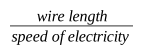
Analog data flows like water through an empty pipe. You open the tap, and the time it takes for the first drop of water to reach you is the latency. When analog audio is transmitted through, say, an RCA cable, the transmission happens at the speed of electricity and your latency is:

wire length/speed of electricity

This number is ridiculously smallespecially when compared to the speed of sound. An electrical signal takes 0.001 milliseconds to travel 300 metres (984 feet). Sound takes 874 milliseconds (almost a second).

All analog effects and filters obey similar equations. If you're using, say, an analog pedal with an electric guitar, the signal is transformed continuously by an electrical circuit, so the latency is a function of the wire length (plus capacitors/transistors/etc), and is almost always negligible.

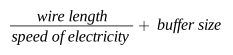
Digital audio is transmitted in "packets" (buffers) of a particular size, like a bucket brigade, but at the speed of electricity. Since the real world is analog, this means to record audio, you must use an Analog-Digital Converter. The ADC quantizes the signal into digital measurements (samples), packs multiple samples into a buffer, and sends it forward. This means your latency is now:

(wire length/speed of electricity) + buffer size

We saw above that the first part is insignificant, what about the second part?

Latency is measured in time, but buffer size is measured in bytes. For 16-bit integer audio, each measurement (sample) is stored as a 16-bit integer, which is 2 bytes. That's the theoretical lower limit on the buffer size. The sample rate defines how often measurements are made, and these days, is usually 48KHz. This means each sample contains ~0.021ms of audio. To go lower, we need to increase the sample rate to 96KHz or 192KHz.

However, when general-purpose computers are involved, the buffer size is almost never lower than 32 bytes, and is usually 128 bytes or larger. For single-channel 16-bit integer audio at 48KHz, a 32 byte buffer is 0.33ms, and a 128 byte buffer is 1.33ms. This is our buffer size and hence the base latency while recording (or playing) digital audio.

Digital effects operate on individual buffers, and will add an additional amount of latency depending on the delay added by the CPU processing required by the effect. Such effects may also add latency if the algorithm used requires that, but that's the same with analog effects.

The Digital Age


So everyone's using digital. But isn't 1.33ms a lot of additional latency?

It might seem that way till you think about it in real-world terms. Sound travels less than half a meter (1½ feet) in that time, and that sort of delay is completely unnoticeable by humansotherwise we'd notice people's lips moving before we heard their words.

In fact, 1.33ms is too small for the majority of audio applications!

To process such small buffer sizes, you'd have to wake the CPU up 750 times a second, just for audio. This is highly inefficient, and wastes a lot of power. You really don't want that on your phone or your laptop, and is completely unnecessary in most cases anyway.

For instance, your music player will usually use a buffer size of ~200ms, which is just 5 CPU wakeups per second. Note that this doesn't mean that you will hear sound 200ms after hitting "play". The audio player will just send 200ms of audio to the sound card at once, and playback will begin immediately.

Of course, you can't do that with live playback such as video calls—you can't "read-ahead" data you don't have. You'd have to invent a time machine first. As a result, apps that use real-time communication have to use smaller buffer sizes because that directly affects the latency of live playback.

That brings us back to efficiency. These apps also need to conserve power, and 1.33ms buffers are really wasteful. Most consumer apps that require low latency use 10-15ms buffers, and that's good enough for things like voice/video calling, video games, notification sounds, and so on.

Ultra Low Latency


There's one category left: musicians, sound engineers, and other folk that work in the pro-audio business. For them, 10ms of latency is much too high!

You usually can't notice a 10ms delay between an event and the sound for it, but when making music, you can hear it when two instruments are out-of-sync by 10ms or if the sound for an instrument you're playing is delayed. Instruments such as drum snare are more susceptible to this problem than others, which is why the stage monitors used in live concerts must not add any latency.

The standard in the music business is to use buffers that are 5ms or lower, down to the 0.33ms number that we talked about above.

Power consumption is absolutely no concern, and the real problems are the accumulation of small amounts of latencies everywhere in your stack, and ensuring that you're able to read buffers from the hardware or write buffers to the hardware fast enough.

Let's say you're using an app on your computer to apply digital effects to a guitar that you're playing. This involves capturing audio from the line-in port, sending it to the application for processing, and playing it from the sound card to your amp.

The latency while capturing and outputting audio are both multiples of the buffer size, so it adds up very quickly. The effects app itself will also add a variable amount of latency, and at 1.33ms buffer sizes you will find yourself quickly approaching a 10ms latency from line-in to amp-out. The only way to lower this is to use a smaller buffer size, which is precisely what pro-audio hardware and software enables.

The second problem is that of CPU scheduling. You need to ensure that the threads that are fetching/sending audio data to the hardware and processing the audio have the highest priority, so that nothing else will steal CPU-time away from them and cause glitching due to buffers arriving late.

This gets harder as you lower the buffer size because the audio stack has to do more work for each bit of audio. The fact that we're doing this on a general-purpose operating system makes it even harder, and requires implementing real-time scheduling features across several layers. But that's a story for another time!

I hope you found this dive into digital audio interesting! My next post will be is about my journey in implementing ultra low latency capture and render on Windows in the WASAPI plugin for GStreamer. This was already possible on Linux with the JACK GStreamer plugin and on macOS with the CoreAudio GStreamer plugin, so it will be interesting to see how the same problems are solved on Windows. Tune in!

Monday, February 26, 2018

Decoupling GStreamer Pipelines

This post is best read with some prior familiarity with GStreamer pipelines. If you want to learn more about that, a good place to start is the tutorial Jan presented at LCA 2018.

Elevator Pitch


GStreamer was designed with modularity, pluggability, and ease of use in mind, and the structure was somewhat inspired by UNIX pipes. With GStreamer, you start with an idea of what your dataflow will look like, and the pipeline will map that quite closely.

This is true whether you're working with a simple and static pipeline:

source ! transform ! sink

Or if you need complex and dynamic pipelines with varying rates of data flow:


The inherent pluggability of the system allows for quick prototyping and makes a lot of changes simpler than they would be in other systems.

At the same time, to achieve efficient multimedia processing, one must avoid onerous copying of data, excessive threading, or additional latency. Other features necessary are varying rates of playback, seeking, branching, mixing, non-linear data flow, timing, and much more, but let's keep it simple for now.

Modular Multimedia Processing


A naive way to implement this would be to have one thread (or process) for each node, and use shared memory or message-passing. This can achieve high throughput if you use the right APIs for zerocopy message-passing, but because of a lack of realtime guarantees on all consumer operating systems, the latency will be jittery and much harder to achieve.

So how does GStreamer solve these problems?

Let's take a look at a simple pipeline to try and understand. We generate a sine wave, encode it with Opus, mux it into an Ogg container, and write it to disk.


$ gst-launch-1.0 -e audiotestsrc ! opusenc ! oggmux ! filesink location=out.ogg


How does data make it from one end of this pipeline to the other in GStreamer? The answer lies in source pads, sink pads and the chain function.

In this pipeline, the audiotestsrc element has one source pad. opusenc and oggmux have one source pad and one sink pad each, and filesink only has a sink pad. Buffers always move from source pads to sink pads. All elements that receive buffers (with sink pads) must implement a chain function to handle each buffer.

Zooming in a bit more, to output buffers, an element will call gst_pad_push() on its source pad. This function will figure out what the corresponding sink pad is, and call the chain function of that element with a pointer to the buffer that was pushed earlier. This chain function can then apply a transformation to the buffer and push it (or a new buffer) onward with gst_pad_push() again.

The net effect of this is that all buffer handling from one end of this pipeline to the other happens in one series of chained function calls. This is a really important detail that allows GStreamer to be efficient by default.

Pipeline Multithreading


Of course, sometimes you want to decouple parts of the pipeline, and that brings us to the simplest mechanism for doing so: the queue element. The most basic use-case for this element is to ensure that the downstream of your pipeline runs in a new thread.

In some applications, you want even greater decoupling of parts of your pipeline. For instance, if you're reading data from the network, you don't want a network error to bring down our entire pipeline, or if you're working with a hotpluggable device, device removal should be recoverable without needing to restart the pipeline.

There are various  mechanisms to achieve such decoupling: appsrc/appsink, fdsrc/fdsink, shmsrc/shmsink, ipcpipeline, etc.  However, each of those have their own limitations and complexities. In particular, events, negotiation, and synchronization usually need to be handled or serialized manually at the boundary.

Seamless Pipeline Decoupling


We recently merged a new plugin that makes this job much simpler: gstproxy. Essentially, you insert a proxysink element when you want to send data outside your pipeline, and use a proxysrc element to push that data into a different pipeline in the same process.

The interesting thing about this plugin is that everything is proxied, not just buffers. Events, queries, and hence caps negotiation all happen seamlessly. This is particularly useful when you want to do dynamic reconfiguration of your pipeline, and want the decoupled parts to reconfigure automatically.

Say you have a pipeline like this:


pulsesrc ! opusenc ! oggmux ! souphttpclientsink


Where the souphttpclientsink element is doing a PUT to a remote HTTP server. If the server suddenly closes the connection, you want to be able to immediately reconnect to the same server or a different one without interrupting the recording. One way to do this, would be to use appsrc and appsink to split it into two pipelines:


pulsesrc ! opusenc ! oggmux ! appsink

appsrc ! souphttpclientsink


Now you need to write code to handle buffers that are received on the appsink and then manually push those into appsrc. With the proxy plugin, you split your pipeline like before:


pulsesrc ! opusenc ! oggmux ! proxysink

proxysrc ! souphttpclientsink


Next, we connect the proxysrc and proxysink elements, and gstreamer will automatically push buffers from the first pipeline to the second one.

g_object_set (psrc, "proxysink", psink, NULL);

proxysink also contains a queue, so the second pipeline will always run in a separate thread.

Another option is the inter plugin. If you use a pair of interaudiosink/interaudiosrc elements, buffers will be automatically moved between pipelines, but those only support raw audio or video, and drop events and queries at the boundary. The proxy elements push pointers to buffers without copying, and they do not care what the contents of the buffers are.

This example was a trivial one, but with more complex pipelines, you usually have bins that automatically reconfigure themselves according to the events and caps sent by upstream elements; f.ex decodebin and webrtcbin. This metadata about the buffers is lost when using appsrc/appsink, and similar elements, but is transparently proxied by the proxy elements.

The ipcpipeline elements also forward buffers, events, queries, etc (not zerocopy, but could be), but they are much more complicated since they were built for splitting pipelines across multiple processes, and are most often used in a security-sensitive context.

The proxy elements only work when all the split pipelines are within the same process, are much simpler and as a result, more efficient. They should be used when you want graceful recovery from element errors, and your elements are not a vector for security attacks.

For more details on how to use them, checkout the documentation and example! The online docs will be generated from that when we're closer to the release of GStreamer 1.14. There are a few caveats, but a number of projects are already using it with great success.

Saturday, February 3, 2018

GStreamer has grown a WebRTC implementation

In other news, GStreamer is now almost buzzword-compliant! The next blog post on our list: blockchains and smart contracts in GStreamer.

Late last year, we at Centricular announced a new implementation of WebRTC in GStreamer.  Today we're happy to announce that after community review, that work has been merged into GStreamer itself! The plugin is called webrtcbin, and the library is, naturally, called gstwebrtc.

The implementation has all the basic features, is transparently compatible with other WebRTC stacks (particularly in browsers), and has been well-tested with both Firefox and Chrome.

Some of the more advanced features such as FEC are already a work in progress, and others will be too—if you want them to be! Hop onto IRC on #gstreamer @ Freenode.net or join the mailing list.

How do I use it?


Currently, the easiest way to use webrtcbin is to build GStreamer using either gst-uninstalled (Linux and macOS) or Cerbero (Windows, iOS, Android). If you're a patient person, you can follow @gstreamer and wait for GStreamer 1.14 to be released which will include Windows, macOS, iOS, and Android binaries.

The API currently lacks documentation, so the best way to learn it is to dive into the source-tree examples. Help on this will be most appreciated! To see how to use GStreamer to do WebRTC with a browser, checkout the bidirectional audio-video demos.

Show me the code! [skip]


Here's a quick highlight of the important bits that should get you started if you already know how GStreamer works. This example is in C, but GStreamer also has bindings for Rust, Python, Java, C#, Vala, and so on.

Let's say you want to capture video from V4L2, stream it to a webrtc peer, and receive video back from it. The first step is the streaming pipeline, which will look something like this:

v4l2src ! queue ! vp8enc ! rtpvp8pay !
    application/x-rtp,media=video,encoding-name=VP8,payload=96 ! 
    webrtcbin name=sendrecv

As a short-cut, let's parse the string description to create the pipeline.

1
2
3
4
5
GstElement *pipe;

pipe = gst_parse_launch ("v4l2src ! queue ! vp8enc ! rtpvp8pay ! "
    "application/x-rtp,media=video,encoding-name=VP8,payload=96 !"
    " webrtcbin name=sendrecv", NULL);

Next, we get a reference to the webrtcbin element and attach some callbacks to it.

 1
 2
 3
 4
 5
 6
 7
 8
 9
10
11
12
13
14
15
16
17
18
19
GstElement *webrtc;

webrtc = gst_bin_get_by_name (GST_BIN (pipe), "sendrecv");
g_assert (webrtc != NULL);

/* This is the gstwebrtc entry point where we create the offer.
 * It will be called when the pipeline goes to PLAYING. */
g_signal_connect (webrtc, "on-negotiation-needed",
    G_CALLBACK (on_negotiation_needed), NULL);
/* We will transmit this ICE candidate to the remote using some
 * signalling. Incoming ICE candidates from the remote need to be
 * added by us too. */
g_signal_connect (webrtc, "on-ice-candidate",
    G_CALLBACK (send_ice_candidate_message), NULL);
/* Incoming streams will be exposed via this signal */
g_signal_connect (webrtc, "pad-added",
    G_CALLBACK (on_incoming_stream), pipe);
/* Lifetime is the same as the pipeline itself */
gst_object_unref (webrtc);

When the pipeline goes to PLAYING, the on_negotiation_needed() callback will be called, and we will ask webrtcbin to create an offer which will match the pipeline above.

 1
 2
 3
 4
 5
 6
 7
 8
 9
10
static void
on_negotiation_needed (GstElement * webrtc, gpointer user_data)
{
  GstPromise *promise;

  promise = gst_promise_new_with_change_func (on_offer_created,
      user_data, NULL);
  g_signal_emit_by_name (webrtc, "create-offer", NULL,
      promise);
}

When webrtcbin has created the offer, it will call on_offer_created()

 1
 2
 3
 4
 5
 6
 7
 8
 9
10
11
12
13
14
15
16
17
18
19
20
21
static void
on_offer_created (GstPromise * promise, GstElement * webrtc)
{
  GstWebRTCSessionDescription *offer = NULL;
  const GstStructure *reply;
  gchar *desc;

  reply = gst_promise_get_reply (promise);
  gst_structure_get (reply, "offer",
      GST_TYPE_WEBRTC_SESSION_DESCRIPTION, 
      &offer, NULL);
  gst_promise_unref (promise);

  /* We can edit this offer before setting and sending */
  g_signal_emit_by_name (webrtc,
      "set-local-description", offer, NULL);

  /* Implement this and send offer to peer using signalling */
  send_sdp_offer (offer);
  gst_webrtc_session_description_free (offer);
}

Similarly, when we have the SDP answer from the remote, we must call "set-remote-description" on webrtcbin.

1
2
3
4
5
6
7
answer = gst_webrtc_session_description_new (
    GST_WEBRTC_SDP_TYPE_ANSWER, sdp);
g_assert (answer);

/* Set remote description on our pipeline */
g_signal_emit_by_name (webrtc, "set-remote-description",
    answer, NULL);

ICE handling is very similar; when the "on-ice-candidate" signal is emitted, we get a local ICE candidate which we must send to the remote. When we have an ICE candidate from the remote, we must call "add-ice-candidate" on webrtcbin.

There's just one piece left now; handling incoming streams that are sent by the remote. For that, we have on_incoming_stream() attached to the "pad-added" signal on webrtcbin.

 1
 2
 3
 4
 5
 6
 7
 8
 9
10
11
12
13
14
15
static void
on_incoming_stream (GstElement * webrtc, GstPad * pad,
    GstElement * pipe)
{
  GstElement *play;

  play = gst_parse_bin_from_description (
      "queue ! vp8dec ! videoconvert ! autovideosink",
      TRUE, NULL);
  gst_bin_add (GST_BIN (pipe), play);

  /* Start displaying video */
  gst_element_sync_state_with_parent (play);
  gst_element_link (webrtc, play);
}

That's it! This is what a basic webrtc workflow looks like. Those of you that have used the PeerConnection API before will be happy to see that this maps to that quite closely.

The aforementioned demos also include a Websocket signalling server and JS browser components, and I will be doing an in-depth application newbie developer's guide at a later time, so you can follow me @nirbheek to hear when it comes out!

Tell me more!


The code is already being used in production in a number of places, such as EasyMile's autonomous vehicles, and we're excited to see where else the community can take it.

If you're wondering why we decided a new implementation was needed, read on! For a more detailed discussion into that, you should watch Matthew Waters' talk from the GStreamer conference last year. It's a great companion for this article!

But before we can dig into details, we need to lay some foundations first.

What is GStreamer, and what is WebRTC? [skip]


GStreamer is a cross-platform open-source multimedia framework that is, in my opinion, the easiest and most flexible way to implement any application that needs to play, record, or transform media-like data across an extremely versatile scale of devices and products. Embedded (IoT, IVI, phones, TVs, …), desktop (video/music players, video recording, non-linear editing, videoconferencing and VoIP clients, browsers …), to servers (encode/transcode farms, video/voice conferencing servers, …) and more.

But what I like the most about GStreamer is the pipeline-based model which solves one of the hardest problems in API design: catering to applications of varying complexity; from the simplest one-liners and quick solutions to those that need several hundreds of thousands of lines of code to implement their full featureset. 

If you want to learn more about GStreamer, Jan Schmidt's tutorial from Linux.conf.au is a good start.

WebRTC is a set of draft specifications that build upon existing RTP, RTCP, SDP, DTLS, ICE (and many other) real-time communication specifications and defines an API for making RTC accessible using browser JS APIs.

People have been doing real-time communication over IP for decades with the previously-listed protocols that WebRTC builds upon. The real innovation of WebRTC was creating a bridge between native applications and webapps by defining a standard, yet flexible, API that browsers can expose to untrusted JavaScript code.

These specifications are constantly being improved upon, which combined with the ubiquitous nature of browsers means WebRTC is fast becoming the standard choice for videoconferencing on all platforms and for most applications.

Everything is great, let's build amazing apps! [skip]


Not so fast, there's more to the story! For WebApps, the PeerConnection API is everywhere. There are some browser-specific quirks as usual, and the API itself keeps changing, but the WebRTC JS adapter handles most of that. Overall the WebApp experience is mostly 👍.

Sadly, for native code or applications that need more flexibility than a sandboxed JS app can achieve, there haven't been a lot of great options.

libwebrtc (Chrome's implementation), Janus, Kurento, and OpenWebRTC have traditionally been the main contenders, but after having worked with all of these, we found that each implementation has its own inflexibilities, shortcomings, and constraints.

libwebrtc is still the most mature implementation, but it is also the most difficult to work with. Since it's embedded inside Chrome, it's a moving target, the API can be hard to work with, and the project is quite difficult to build and integrate, all of which are obstacles in the way of native or server app developers trying to quickly prototype and try out things.

It was also not built for multimedia use-cases, so while the webrtc bits are great, the lower layers get in the way of non-browser use-cases and applications. It is quite painful to do anything other than the default "set raw media, transmit" and "receive from remote, get raw media". This means that if you want to use your own filters, or hardware-specific codecs or sinks/sources, you end up having to fork libwebrtc.

In contrast, as shown above, our implementation gives you full control over this as with any other GStreamer pipeline.

OpenWebRTC by Ericsson was the first attempt to rectify this situation, and it was built on top of GStreamer. The target audience was app developers, and it fit the bill quite well as a proof-of-concept—even though it used a custom API and some of the architectural decisions made it quite inflexible for most other use-cases.

However, after an initial flurry of activity around the project, momentum petered out, the project failed to gather a community around itself, and is now effectively dead.

Full disclosure: we worked with Ericsson to polish some of the rough edges around the project immediately prior to its public release.

WebRTC in GStreamer — webrtcbin and gstwebrtc


Remember how I said the WebRTC standards build upon existing standards and protocols? As it so happens, GStreamer has supported almost all of them for a while now because they were being used for real-time communication, live streaming, and in many other IP-based applications. Indeed, that's partly why Ericsson chose it as the base for OWRTC.

This combined with the SRTP and DTLS plugins that were written during OWRTC's development meant that our implementation is built upon a solid and well-tested base, and that implementing WebRTC features is not as difficult as one might presume. However, WebRTC is a large collection of standards, and reaching feature-parity with libwebrtc is an ongoing task.

Lucky for us, Matthew made some excellent decisions while architecting the internals of webrtcbin, and we follow the PeerConnection specification quite closely, so almost all the missing features involve writing code that would plug into clearly-defined sockets.

We believe what we've been building here is the most flexible, versatile, and easy to use WebRTC implementation out there, and it can only get better as time goes by. Bringing the power of pipeline-based multimedia manipulation to WebRTC opens new doors for interesting, unique, and highly efficient applications.

To demonstrate this, in the near future we will be publishing articles that dive into how to use the PeerConnection-inspired API exposed by webrtcbin to build various kinds of applications—starting with a CPU-efficient multi-party bidirectional conferencing solution with a mesh topology that can work with any webrtc stack.

Until next time!